Installation of HelpDesk SharePoint Framework package
Note
You must be a SharePoint administrator to complete this installation.
If you do not see some of the menus described below, you likely do not have the required permissions. Contact your SharePoint administrator for assistance.
Open the SharePoint Admin Center.
Go to More features > Apps.
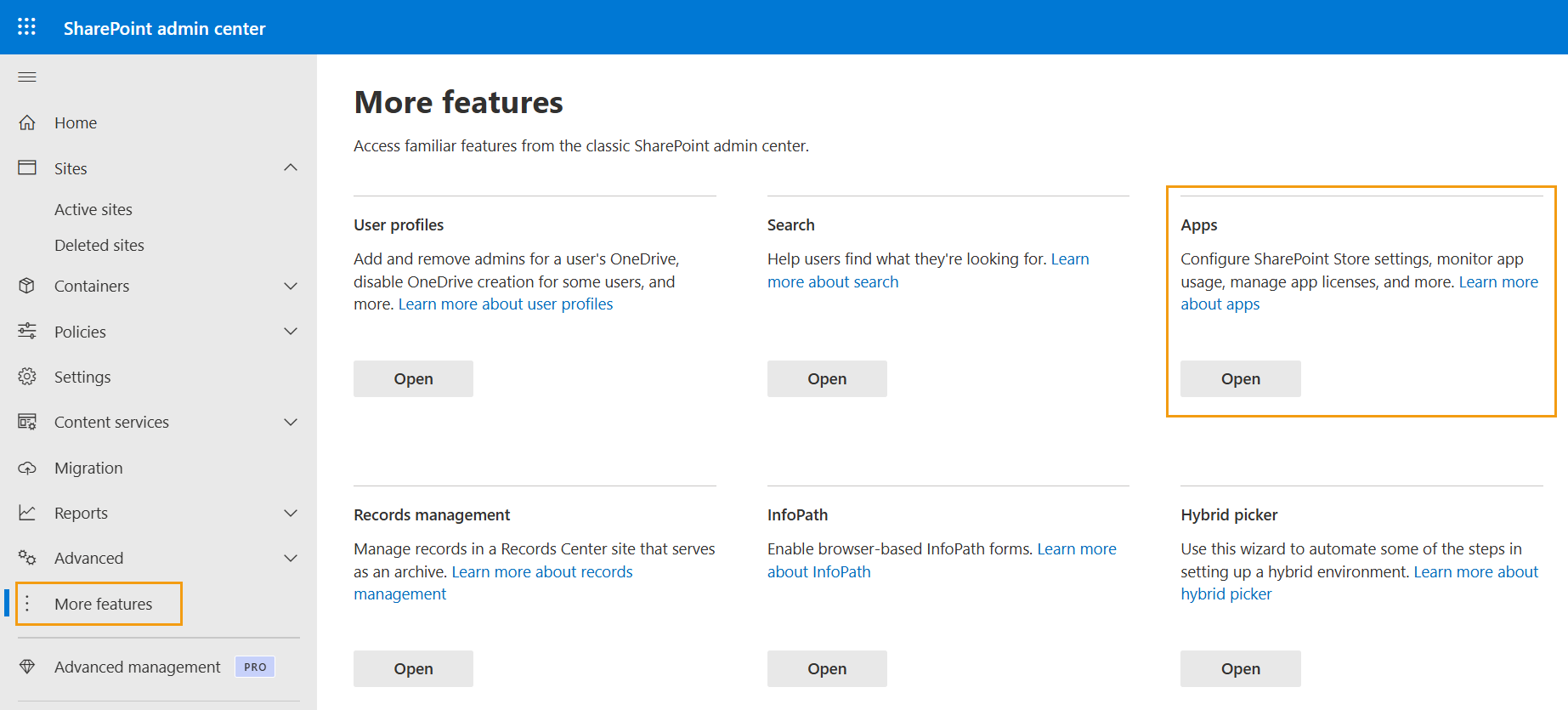
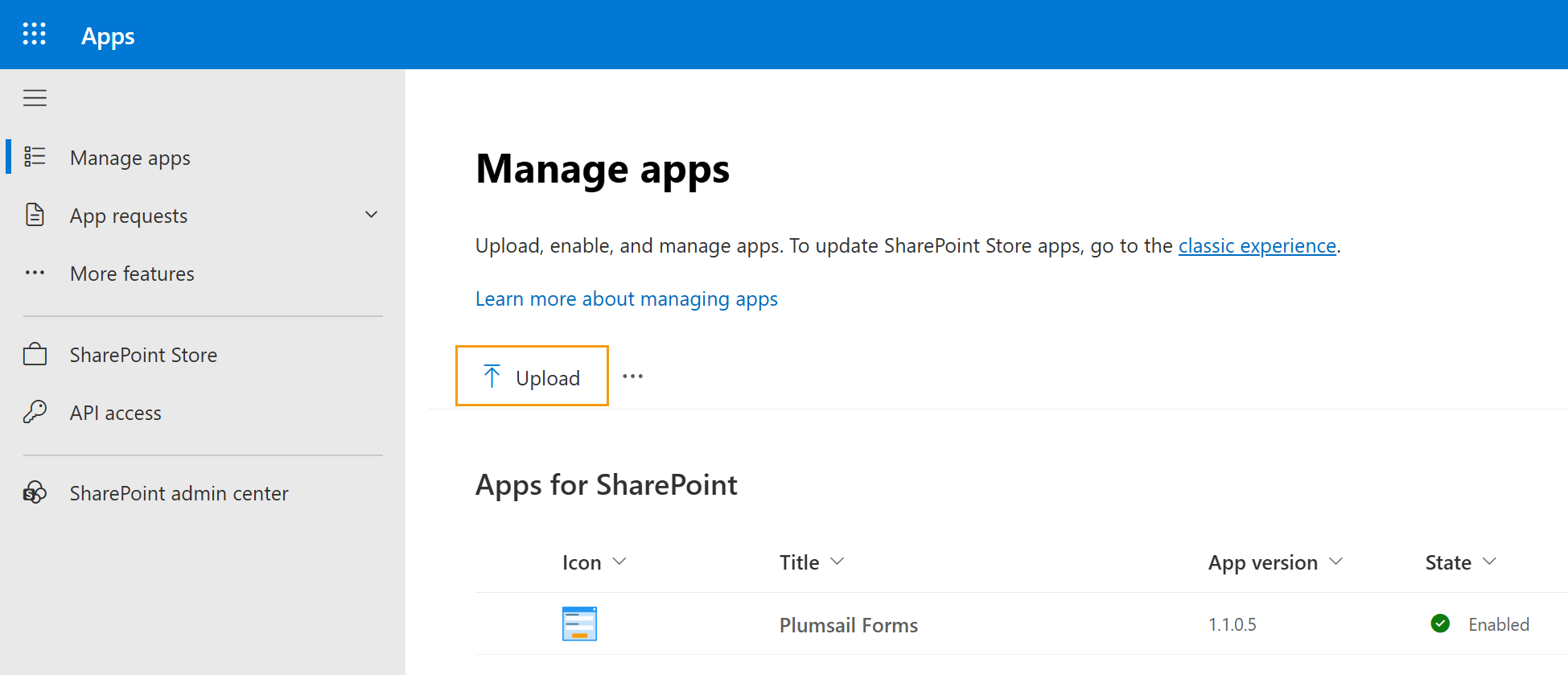
4. If a HelpDesk package is already installed, remove the existing package first.
Then upload the .sppkg file downloaded as-is and do not extract or modify its contents before uploading.
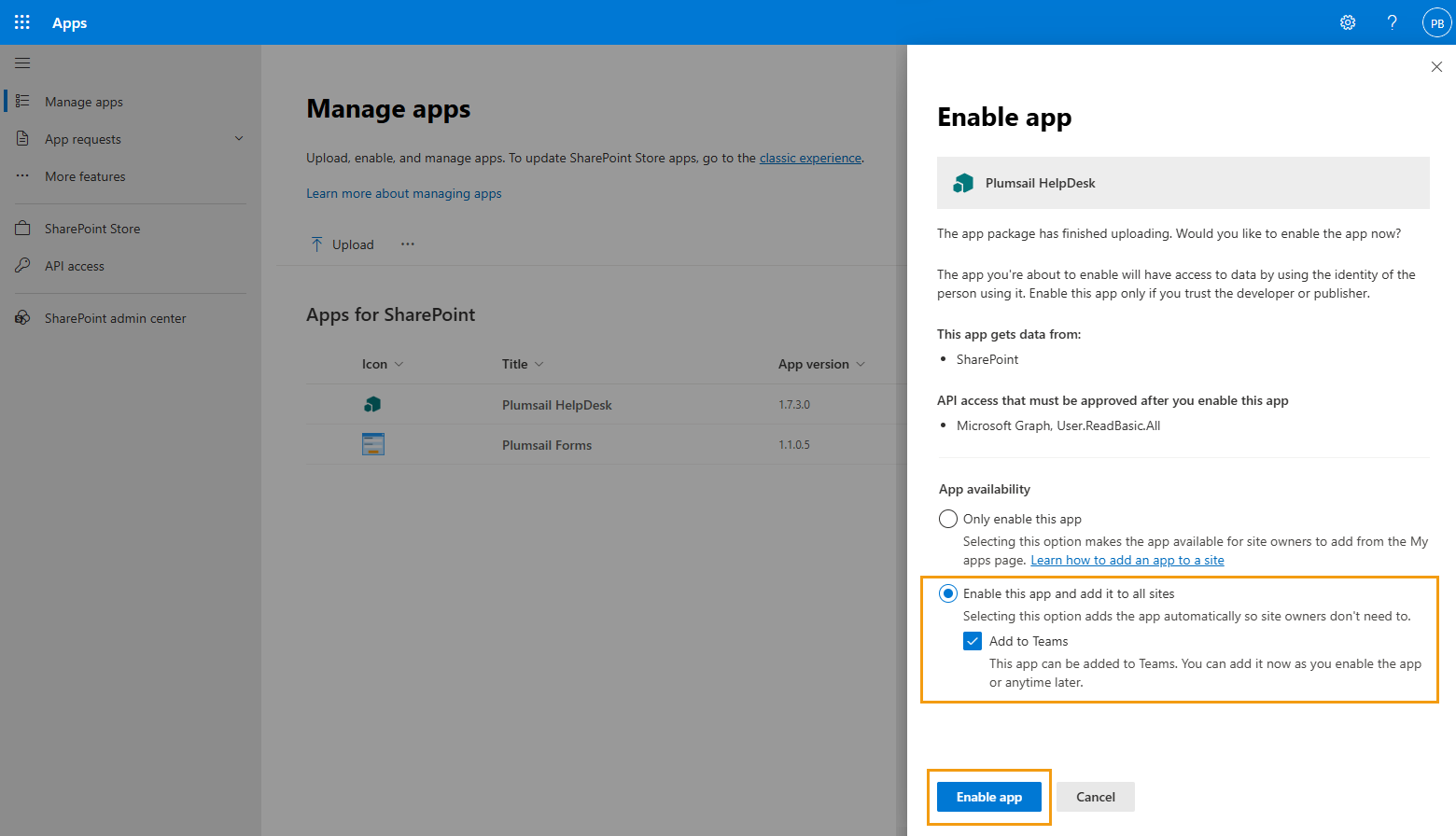
5. In the confirmation dialog, select Enable this app and add it to all sites, then click Enable app. If you also plan to add the HelpDesk widget to Teams, leave Add to Teams enabled.
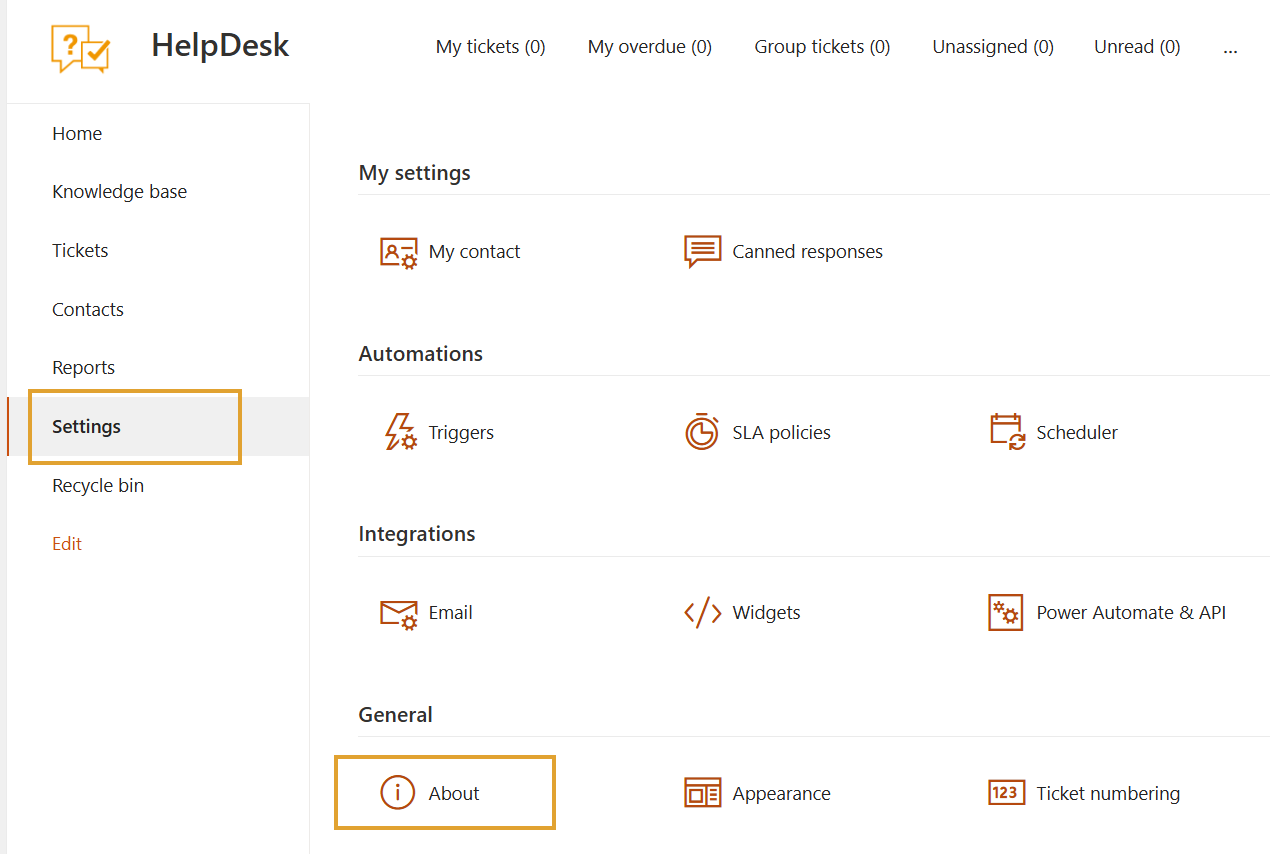
You can always verify the installed HelpDesk version on the About page in the HelpDesk settings.
Note
The version displayed in the SharePoint App Catalog may differ from the actual HelpDesk version since the package uses a different versioning convention.